
Lifetimely: How to Connect Multiple Shopify Stores
Lifetimely lets you connect multiple Shopify stores to a single account, so you can view individual store performance or see a consolidated overview across all stores.
What you can do:
- Connect and manage multiple Shopify stores from one account
- View a combined P&L for all connected stores
- Switch between stores to analyze performance individually
- Perfect for multi-store owners who want one dashboard for overall profitability
- Useful for analysts comparing performance across brands or regions without switching accounts
Before you start
- Prerequisites: Each Shopify store requires its own Lifetimely subscription.
- What you’ll need: Log in via the dedicated multi-store login page: https://lifetimely.useamp.com/login.
- Limitations:
- Consolidated metrics may not perfectly match the sum of individual stores if they use different time zones.
How to connect additional Shopify stores
-
From the left navigation bar, click the Store dropdown and select + Add another Shopify store.
Alternatively, go to Settings > Multiple Shops.
-

Log in to your Lifetimely account.
- First-time setup: You’ll be prompted to create a new Lifetimely account. Click Log in / Create account to continue.
-
Existing setup: Sign in with your credentials.

- Connect to Shopify. Log into the corresponding Shopify store and approve permissions.
-
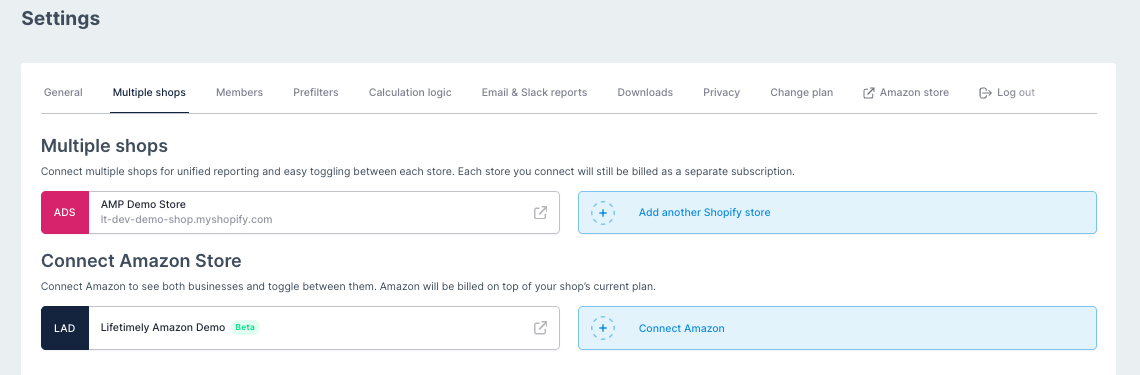
Verify the connection. The newly connected store within Settings > Multiple shops tab.


How to switch between stores
- Open the Store dropdown. From the left navigation bar, click Store.
- Select a store or view. Choose the store you want to analyze, or click Consolidated view to see combined totals for all connected stores.

Note: If connected stores use different time zones, consolidated totals may not perfectly match the sum of each store’s metrics.
How to manage multi-store settings
- Go to Settings. Navigate to Settings > Multiple Shops.
- Adjust defaults. Choose currency and time zone for the consolidated view.
-
Refund behavior. Decide whether refunds count on the order date or the processed date.


How to unlink a store
- Go to Settings > Multiple Shops.
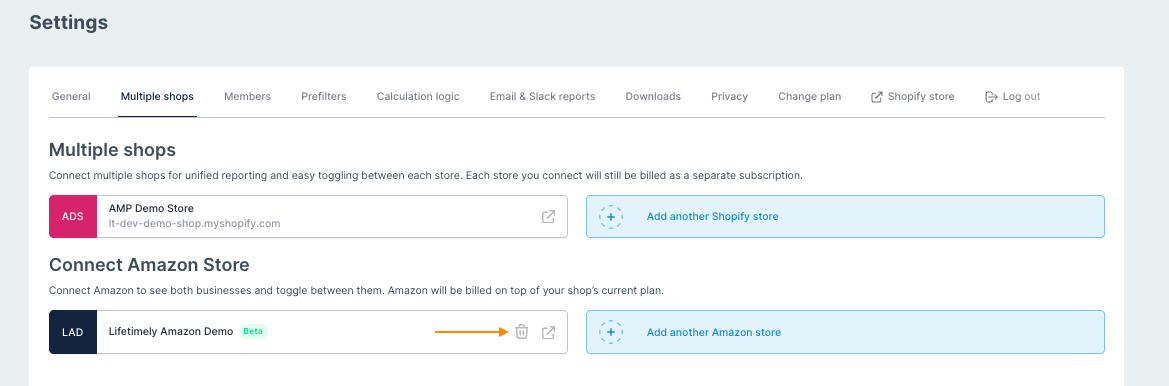
- Click the trash bin icon next to the store you want to remove.
-
Confirm by clicking Unlink shop. The store will be immediately removed.
Troubleshooting
- Can’t see multi-store options? Make sure you logged in through lifetimely.useamp.com/login, not the Shopify Apps page.
- Numbers look off in consolidated view? Check the time zone settings for each store and the consolidated view.
- Can’t connect a store? Confirm you have an active Lifetimely subscription for that store.
FAQs
Q: Do I need to pay for a new subscription for each store?
A: Yes. Each Shopify store connected to your multi-store account requires its own subscription.