
Lifetimely: How to connect Okendo
At a glance
Connect Okendo to Lifetimely with your Okendo User ID and REST API Key to see product ratings and review counts alongside your profit and LTV data.
Note: The integration currently syncs review data (reviews and reviewer profiles). Okendo Loyalty/Survey data is not yet imported.
What this enables
- See average rating and review counts for every product directly in the Products report, next to margin, inventory, and sales columns
- Ask the AI agent questions that combine reviews with your profit data, like "do my highest-rated products retain customers better?"
- Break down repurchase rates by the star rating customers gave on their first order
Note: The integration currently syncs review data (reviews and reviewer profiles). Okendo Loyalty data is not yet imported.
What you'll need
- An Okendo account with access to the Merchant REST API Key. Okendo marks this feature "Advanced", but Okendo enables it free of charge for Lifetimely customers - if you don't see the key in your Okendo dashboard, email support@okendo.io and ask them to turn on Merchant REST API access for your account.
- Admin access to your Lifetimely account
Setup
Step 1 - Find your API credentials in Okendo
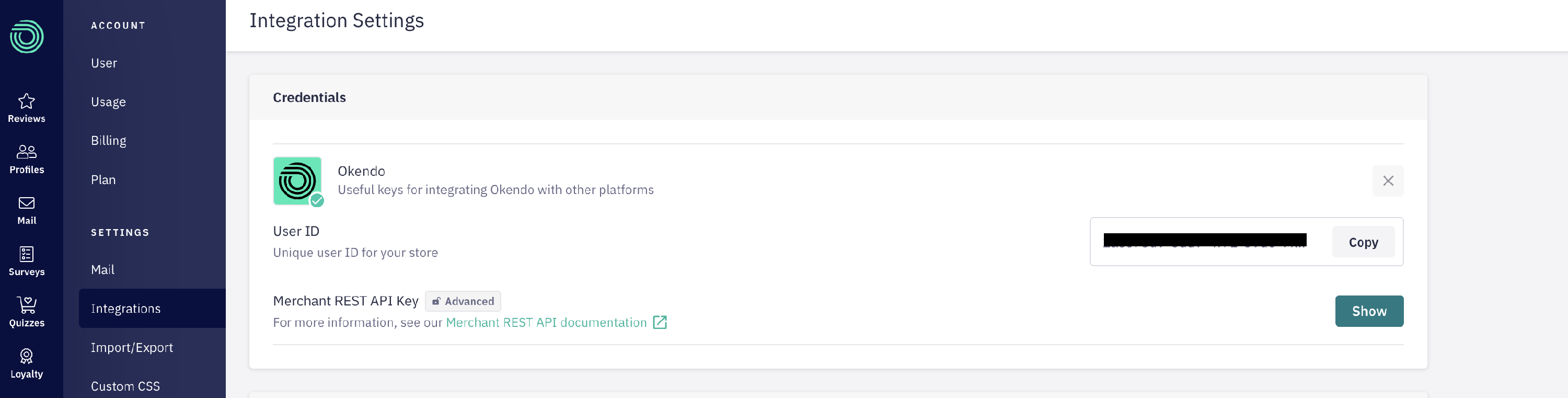
- In the Okendo dashboard, go to Settings > Integrations (the "Integration Settings" page).
- In the Credentials card, copy your User ID.
- Next to Merchant REST API Key, click Show, then copy the key.
Step 2 - Open the Okendo page in Lifetimely
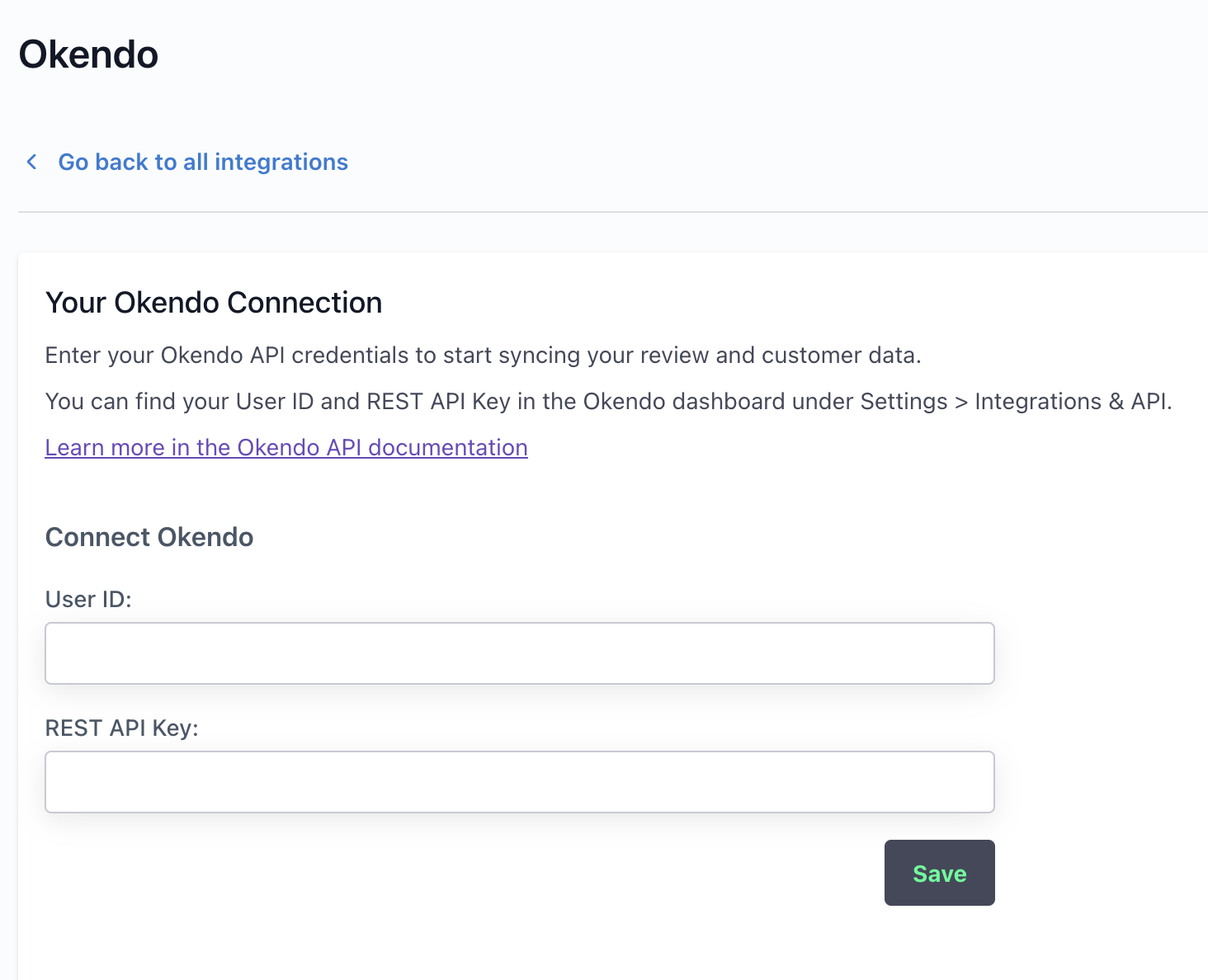
- In Lifetimely, go to Integrations and select Okendo (or go directly to
https://lifetimely.useamp.com/integrations/okendo). - You'll see the Connect Okendo form with two fields.
Step 3 - Paste your credentials and save
- Paste the User ID and REST API Key you copied from Okendo.
- Click Save. Lifetimely tests the connection with Okendo before saving, so an invalid or incomplete key is flagged right away.
Step 4 - You're connected
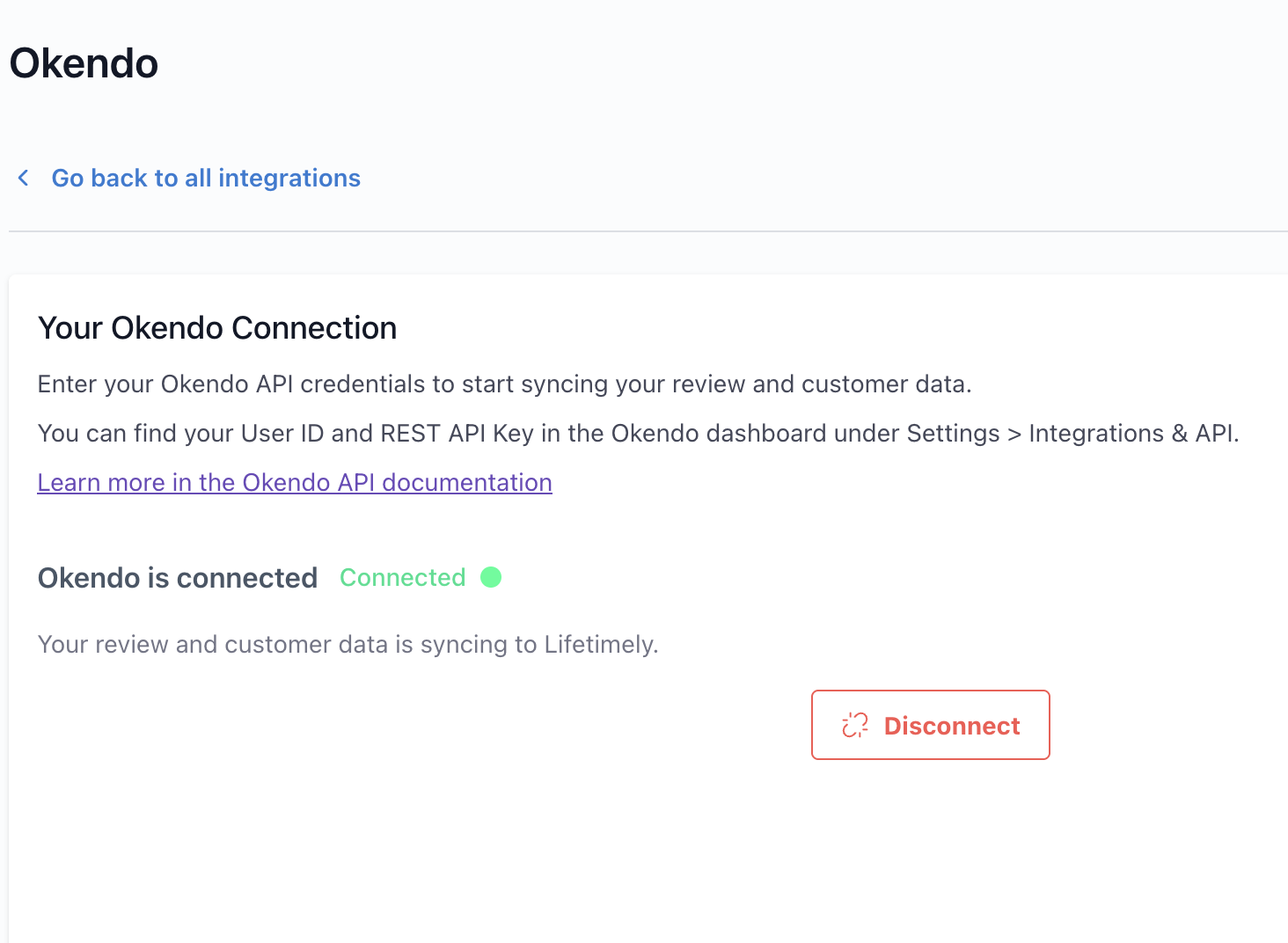
Once saved, the page shows Okendo is connected with a green Connected indicator, and your review data starts syncing automatically. Depending on how many reviews your store has, the first import can take from a few minutes up to a few hours.
Where you'll see the data
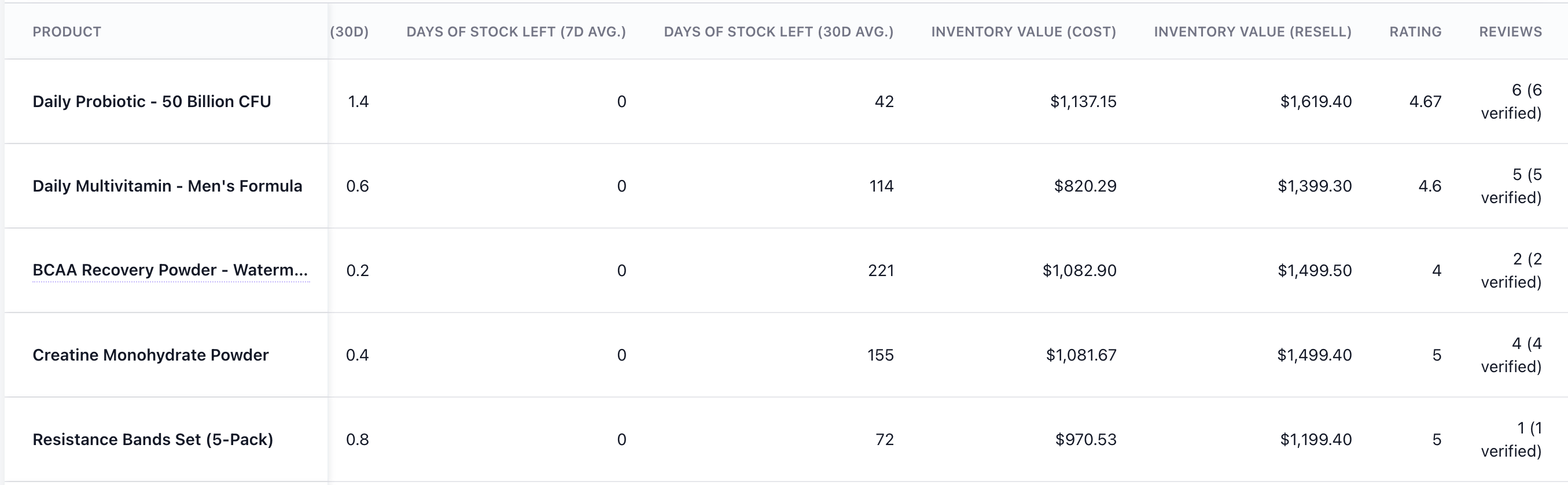
- Products report (Profit & Loss > Products): new Rating and Reviews columns, including verified-purchase counts. The columns appear automatically once your reviews have synced.
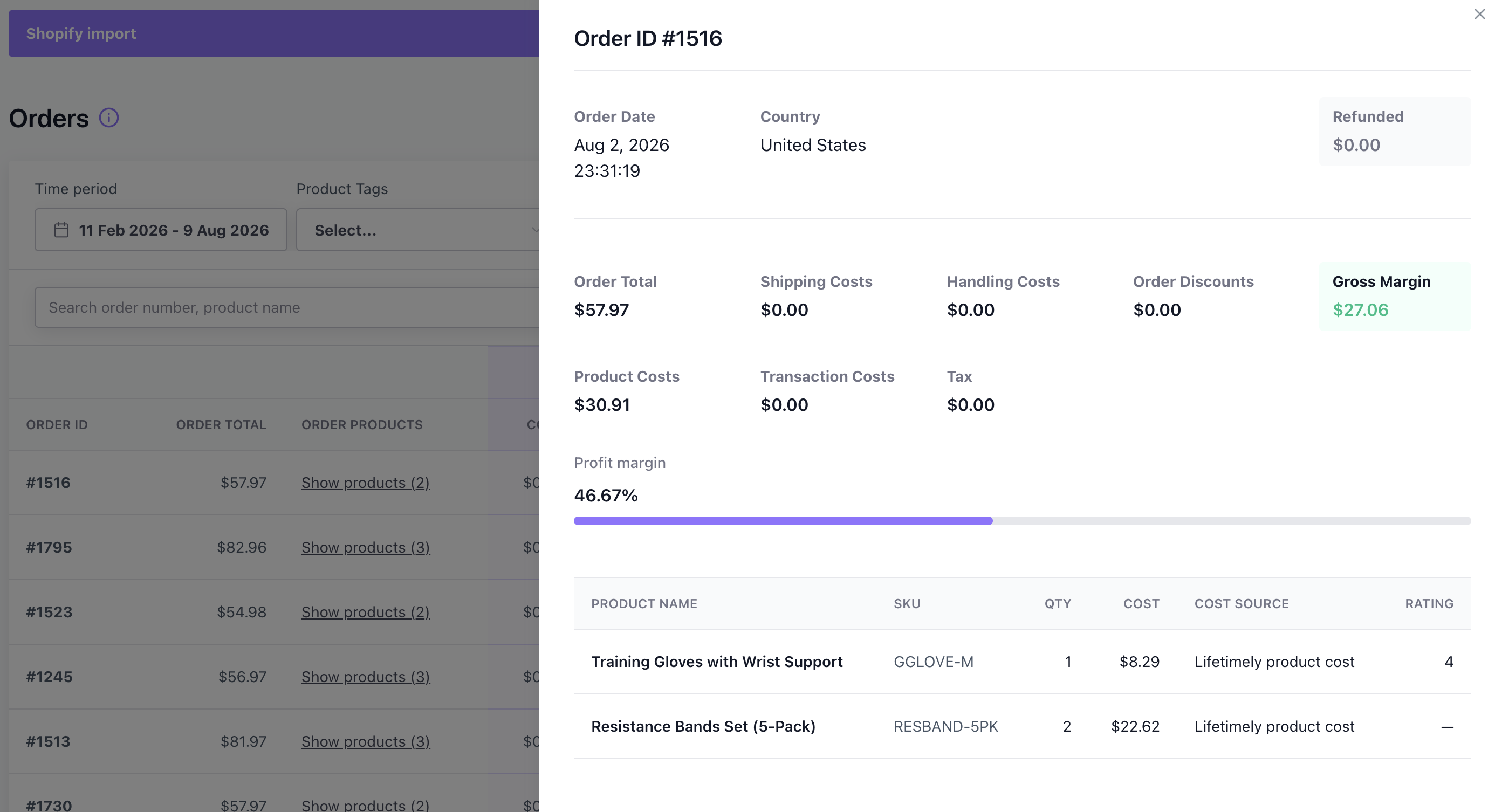
- Orders Details: per-product rating on each order
- AI agent: ask questions about reviews combined with your sales and profit data.
Ways to use it: what to ask the Profit Agent
The real power of the integration is that your reviews sit next to your profit, order, and customer data - so the Profit Agent can answer questions neither system can answer alone. Some examples to try:
Spot product problems and winners
- "What are my lowest-rated products, and how much revenue do they bring in?"
- "Show me products that sell well but have a rating under 4 stars."
- "What do customers say in reviews of [product]? Summarize the common complaints."
Connect reviews to customer value
- "Do customers who leave a review have a higher lifetime value than those who don't?"
- "Do customers who leave 5-star reviews come back more often than those who leave 1-3 stars?"
- "Which customers left a negative review on their first order and never came back?"
Track quality over time
- "How has the average rating of [product] changed over the last 6 months?"
- "Which products got the most negative reviews this quarter compared to last?"
The agent understands review ratings, verified-buyer status, review text, and sentiment, and can combine them with any of your sales, profit, and retention data.
Troubleshooting
Saving fails or the connection test errors: Double-check both fields. The REST API Key is a long string - make sure the whole key was copied, with no spaces before or after. Re-copy both values from Okendo's Integration Settings page and try again.
I don't see a Merchant REST API Key in Okendo: The key is an "Advanced" Okendo feature, but Okendo enables it at no cost for Lifetimely customers. Email support@okendo.io and ask them to turn on Merchant REST API access for your store.
The Rating and Reviews columns aren't showing: The columns appear once your first review sync completes. If you connected recently, give it a little time and refresh. If they still don't appear after a few hours, contact support.
Notes
- After the first import, Lifetimely checks Okendo for new and updated reviews every 2 hours, with a full refresh weekly.
- Disconnecting (the Disconnect button on the Okendo integration page) stops the sync and removes your synced review data from Lifetimely.
- Lifetimely only reads data from Okendo - it never writes to or changes anything in your Okendo account.