
Back in Stock: Definition of Conversions
At a glance: Track notification performance, conversion rates, and demand analytics from your Back in Stock dashboard.
Back in Stock provides comprehensive analytics to help you understand customer demand, optimize notification timing, and track performance across all channels. This guide covers everything from basic dashboard metrics to advanced conversion analytics.
In this article, the following sections are discussed:
BIS Signup Data

Access: Navigate to Restock alerts → View all signups
Manage individual customer signups and track their notification status.
Key Features:
Search & Filter Options:
- Search by customer email, name, or product SKU
- Filter by status: Waiting, Notified or Archived notifications
- Sort by date, product name, or customer email
- Click on the product, or individual customer email for more information
Customer Status Understanding:
- "Customer Unsubscribed": Customer opted out of this specific notification
- Cannot be re-subscribed to same notification
- Customer can still create new notification requests from product pages
Export Functionality:
- Click "Export to CSV"
- Wait 1-2 minutes for file preparation (longer for large datasets)
- Download and analyze in Excel, Google Sheets, etc.
BIS Notifications Data

Access:
- Navigate to Restock alerts
- Scroll down to the Recent notifications
- In the bottom right press on View all notifications
Track individual notifications sent and monitor their delivery status.
Use Cases:
- Monitor delivery success rates
- Troubleshoot notification delivery issues
- Track notification performance by product or time period
- Identify patterns in failed deliveries
Google Analytics Integration
Tracking Conversions
To track Back in Stock conversions in Google Analytics:
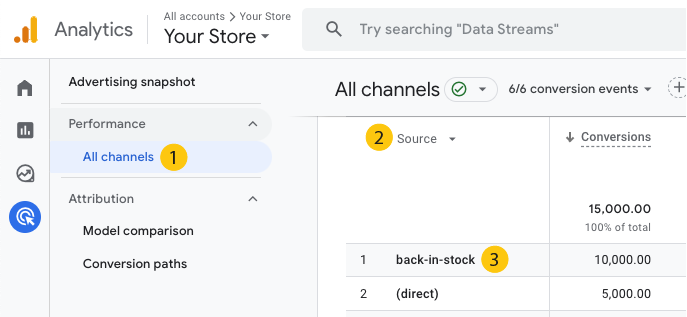
- Ensure proper GA4 setup: Follow Shopify's current GA4 setup documentation
- Verify UTM parameters: Contact backinstock-support@useamp.com to confirm UTM parameters in your email templates
- Monitor attribution: Back in Stock notifications will appear in your GA4 conversion tracking
Frequently Asked Questions
Analytics Dashboard
What timezone are metrics based on? All analytics use your main Shopify store timezone setting. To change this, update your Shopify store's timezone (cannot be adjusted within Back in Stock).
Are date ranges inclusive? Yes - selected date ranges include all activity from 12:00:00 AM on the first day through 11:59:59 PM on the last day.
Why isn't conversion value a multiple of product price? Conversion values include the total order value when customers purchase additional items beyond the notified product. If someone receives a notification for a t-shirt but buys the t-shirt plus other items, the entire cart value is attributed to that notification.
Can activity reports go to multiple emails? Yes - in Settings → Activity updates, enter multiple email addresses separated by commas in the "Deliver to" field.
Need help with analytics setup? Contact backinstock-support@useamp.com