
Slide Cart: Why Is My Theme's Cart Icon Count Wrong?
At a glance: Fix cart icon count not syncing by updating the href format of your theme's cart icon link.
You might have noticed that your theme's cart icon count does not sync when adding/removing products from Slide Cart. This mostly happens because the href associated with your cart icon isn't formatted as href="/cart".
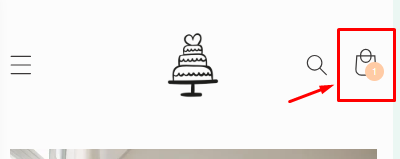
Although this isn't a default functionality of our app, we understand the importance of fully integrating Slide Cart with your theme.
Most of the time, syncing the cart count can be achieved by adding the data-cart-count attribute to the Cart Count HTML, which is usually found in the header.liquid file.
Some themes will require a different configuration, so you can find some of the most common themes here.
You can find it by using the search tool (CTRL+F) and looking for cart.item:

The data-cart count needs to be added to the <span> element right before the {{ cart.item_count }} . It would look like this:
<span aria-hidden="true" data-cart-count>{{ cart.item_count }}</span>
This method will work for most themes, but in case it doesn’t, we have more detailed guides below. Find your theme and apply the suggested changes.
Not comfortable making code edits? Contact us at slidecart@apphq.co and our team will gladly make this edit for you.
Find your theme:
- Dawn / Spotlight / Sense / Refresh
- Debutify
- Expanse
- Showcasehttps://slide-cart.helpscoutdocs.com/article/456-why-is-my-theme-s-cart-count-wrong-or-not-synchronizing?auth=true
- Turbo
- Impact
- Prestige
- Empire
- Streamline
- Impulse
Dawn / Spotlight / Sense / Refresh
Follow the steps above to add the data-cart-count attribute to the cart.item element. In addition, within the same element in the header.liquid file, follow these steps:
- Right above the
{%- if cart != empty -%}line, add the following code:
{% if settings.slidecart %}
        {%- if cart == empty -%}
          <div class="cart-count-bubble">
            {%- if cart.item_count == 0 -%}
                <span aria-hidden="true" data-cart-count>{{ cart.item_count }}</span>
            {%- endif -%}
                <span class="visually-hidden">{{ 'sections.header.cart_count' | t: count: cart.item_count }}</span>
          </div>
        {%- endif -%}
        {%- endif -%}
The end result will look like this:

- Finally, add the following code to the settings_schema.json file on line 10.
{
    "name": "Slide Cart",
    "settings": [
      {
        "type": "checkbox",
        "label": "Slide Cart Edits",
        "id": "slidecart",
        "default": true
      }
    ]
  },
This will add a checkbox in your Theme Settings that allows you to enable/disable the changes.
Debutify
For this theme, following the initial steps described in the article is unnecessary. All you need to do is add the following code to the theme.liquid file, underneath the <body> element:
window.SLIDECART_UPDATED = function(cart) {
    var el = document.querySelector(".cart-link__bubble");
    const sc = document.querySelector("#slidecarthq .cart-count");
    var num = document.querySelector(".cart-count");
    var cls = 'cart-link__bubble--visible';
    if(!el &&!sc) return;
    cart.item_count > 0 ? el.classList.add(cls) : el.classList.remove(cls);
    sc.setAttribute("data-cart-count", "");
    num.setAttribute("data-cart-count", "")
}
Expanse
For this theme, following the initial steps described in the article is unnecessary. All you need to do is add the following code to the theme.liquid file, underneath the <body> element:
<script>
	window.SLIDECART_UPDATED = function(cart) {
		document.dispatchEvent(new CustomEvent('cart:build'));
	}
</script>
Showcase
For this theme, following the initial steps described in the article is unnecessary. All you need to do is add the following code to the theme.liquid file, underneath the <body> element:
<script>
  window.SLIDECART_LOADED = function(cart) {
    const el = document.querySelector('.cart-icon--basket1 .w3_bg, .cart-icon--basket2');
    const sc = document.querySelector("#slidecarthq .cart-count");
    if(!el && !sc) return;
    el.setAttribute("data-cart-count", "")
    sc.setAttribute("data-cart-count", "")
  }
</script>
Turbo
For this theme, following the initial steps described in the article is unnecessary. All you need to do is add the following code to the theme.liquid file, underneath the <body> element:
<script>
	window.SLIDECART_LOADED = function(cart) {
	    var el = document.querySelectorAll('.cart_count')
	    if(!el) return;
	    Array.from(el).forEach((e)=>{
	        e.setAttribute("data-cart-count", "")
	    })
	}
	</script>
Impact
For this theme, following the initial steps described in the article is unnecessary. All you need to do is add the following code to the theme.liquid file, underneath the <body> element:
<script>
      window.SLIDECART_UPDATED = (cart) => {
        var el = document.querySelector(".count-bubble")
        var cls = 'opacity-0';
        const sc = document.querySelector("#slidecarthq .cart-count");
        if(!el && !sc) return;
        cart.item_count > 0 ? el.classList.remove(cls) : el.classList.add(cls);
        sc.setAttribute("data-cart-count", "");
  }
</script>
Prestige
For this theme, following the initial steps described in the article is unnecessary. All you need to do is add the following code to the theme.liquid file, underneath the <body> element:
<script>
window.SLIDECART_UPDATED = function(cart) {
    var el = document.querySelector(".Header__CartDot")
    var cls = 'is-visible';
    const sc = document.querySelector("#slidecarthq .cart-count");
    if(!el && !sc) return;
    cart.item_count > 0 ? el.classList.add(cls) : el.classList.remove(cls);
    sc.setAttribute("data-cart-count", "");
    el.setAttribute("data-cart-count", "");
}
</script>
Empire
For this theme, following the initial steps described in the article is unnecessary. All you need to do is add the following code to the theme.liquid file, underneath the <body> element:
window.SLIDECART_LOADED = function(cart) {
    var el = document.querySelectorAll('.cart_count')
    if(!el) return;
    Array.from(el).forEach((e)=>{
        e.setAttribute("data-cart-count", "")
    })
}
window.SLIDECART_UPDATED = function(cart) {
    var el = document.querySelector('.site-header-cart--count')
    var cls = 'visible';
    if(!el) return;
    cart.item_count > 0 ? el.classList.add(cls) : el.classList.remove(cls);
    el.setAttribute("data-header-cart-count", cart.item_count)
}
Streamline
For this theme, following the initial steps described in the article is unnecessary. All you need to do is add the following code to the theme.liquid file, underneath the <body> element:
<script>
window.SLIDECART_LOADED = function(cart) {
    document.querySelector("body").classList.add("cart-has-items");
    const cartLinkBubble = document.querySelector('.cart-link__bubble');
    const cartLinkBubbleNum = document.querySelector('.cart-link__bubble-num');
    const visible = 'cart-link__bubble--visible';
    if(!cartLinkBubble && !cartLinkBubbleNum) return;
    cartLinkBubble.classList.add(visible);
    cartLinkBubbleNum.setAttribute("data-cart-count", cart.item_count)
}
</script>
Impulse
For this theme, following the initial steps described in the article is unnecessary. All you need to do is add the following code to the theme.liquid file, underneath the <body> element:
<script>
	window.SLIDECART_UPDATED = function(cart) {
		var el = document.querySelector('.cart-link__bubble')
		var cls = 'cart-link__bubble--visible'

		cart.item_count > 0 ? el.classList.add(cls) : el.classList.remove(cls)
	}
</script>